Create collection of computers based on software installed
Monday, April 29, 2019
1:31 PM
About:
To get list of machines which have a specific software installed on them. I will use in this example to list all computers with AnyConnect application installed.
Steps:
- Open SCCM Console
- In “Assets and Compliance” go to your Device Collections and right-click and choose “Create Device Collection”.
In the “Create Device Collection Wizard” enter a name for this new collection and choose “all system” in limiting collection.
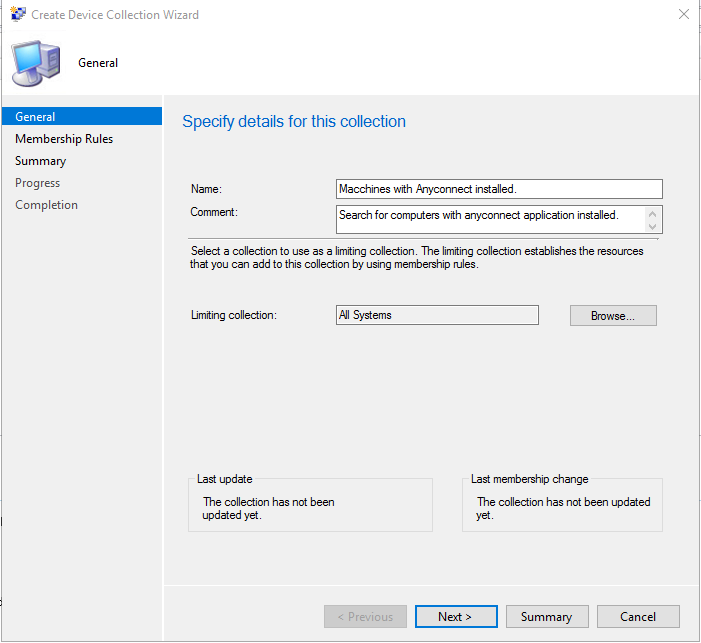
-
In the next screen, click on “Add Rule” and then click on “Query Rule”.
-
![Create Device Collection Wizard
Membership Rules
General
Membership Rules
Summary
Progress
Completion
Define membership rules for this collection
Membership rules determina tha resources that ara included in tha collection when t updates You
can use membership n_lles to add a specific object or a sat of objects from a query The collection
membership can also include or exclude other collectione Membership rules can add only those
objects that are members of tha collection
Membership rules
Rule Name
There are no items to show in this vie"
use incremental updates for this
An ncremental update
to this collection This option
Z] Schedule a full update on this
Add Rule
Direct Rule
Query Rule
Device Category Rule
Include Collections
Exclude Collections
resources that qualify
e for this collection
Occurs every 7 days effective 4/29/2019 1 30 PM
Previous
Summary
Cancel](data:image/svg+xml;base64,PHN2ZyB4bWxucz0iaHR0cDovL3d3dy53My5vcmcvMjAwMC9zdmciIHdpZHRoPSI2OTgiIGhlaWdodD0iNjQ1IiB2aWV3Qm94PSIwIDAgNjk4IDY0NSI+PHJlY3Qgd2lkdGg9IjEwMCUiIGhlaWdodD0iMTAwJSIgc3R5bGU9ImZpbGw6I2NmZDRkYjtmaWxsLW9wYWNpdHk6IDAuMTsiLz48L3N2Zz4=)
![Create Device Collection Wizard
Membership Rules
General
Membership Rules
Summary
Progress
Completion
Define membership rules for this collection
Membership rules determina tha resources that ara included in tha collection when t updates You
can use membership n_lles to add a specific object or a sat of objects from a query The collection
membership can also include or exclude other collectione Membership rules can add only those
objects that are members of tha collection
Membership rules
Rule Name
There are no items to show in this vie"
use incremental updates for this
An ncremental update
to this collection This option
Z] Schedule a full update on this
Add Rule
Direct Rule
Query Rule
Device Category Rule
Include Collections
Exclude Collections
resources that qualify
e for this collection
Occurs every 7 days effective 4/29/2019 1 30 PM
Previous
Summary
Cancel](http://rewayat.xyz/wp-content/uploads/2020/08/create-device-collection-wizard-membership-rules.png)
-
In the “Query Rule Properties”, enter a name for this query, “All computers with AnyConnect” and then click on “Edit Query Statement..” In this example, I will search for any computer with AnyConnect application installed on it.
-


- In the next window, you’ll want to click on “Show Query Language” and then copy/paste the below code and click on OK:
select
SMS_R_SYSTEM.ResourceID,
SMS_R_SYSTEM.ResourceType,
SMS_R_SYSTEM.Name,
SMS_R_SYSTEM.SMSUniqueIdentifier,
SMS_R_SYSTEM.ResourceDomainORWorkgroup,
SMS_R_SYSTEM.Client
from
SMS_R_System
inner join
SMS_G_System_ADD_REMOVE_PROGRAMS
on
SMS_G_System_ADD_REMOVE_PROGRAMS.ResourceID = SMS_R_System.ResourceId
where
SMS_G_System_ADD_REMOVE_PROGRAMS.DisplayName like “%anyconnect%”
and
SMS_G_System_ADD_REMOVE_PROGRAMS.Version like “%” order by SMS_R_System.Name
- Once back in the “Query Rule Properties” window, click on OK to close and go back to the “Create Device Collection Wizard” where you can add more direct rules, query rules or include/ exclude collections. For now, click on Next.